How to schedule a Microsoft Teams meeting with a meeting link?
To hold an online meeting, users must turn on the “Teams meeting” toggle when they create the invitation.
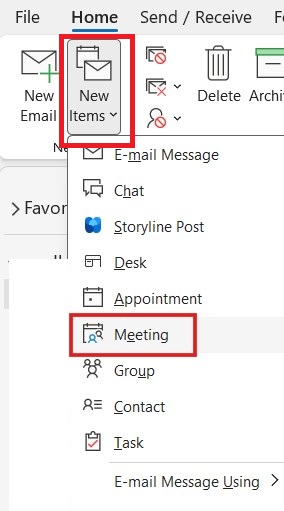
- Open New items>Meeting/Event
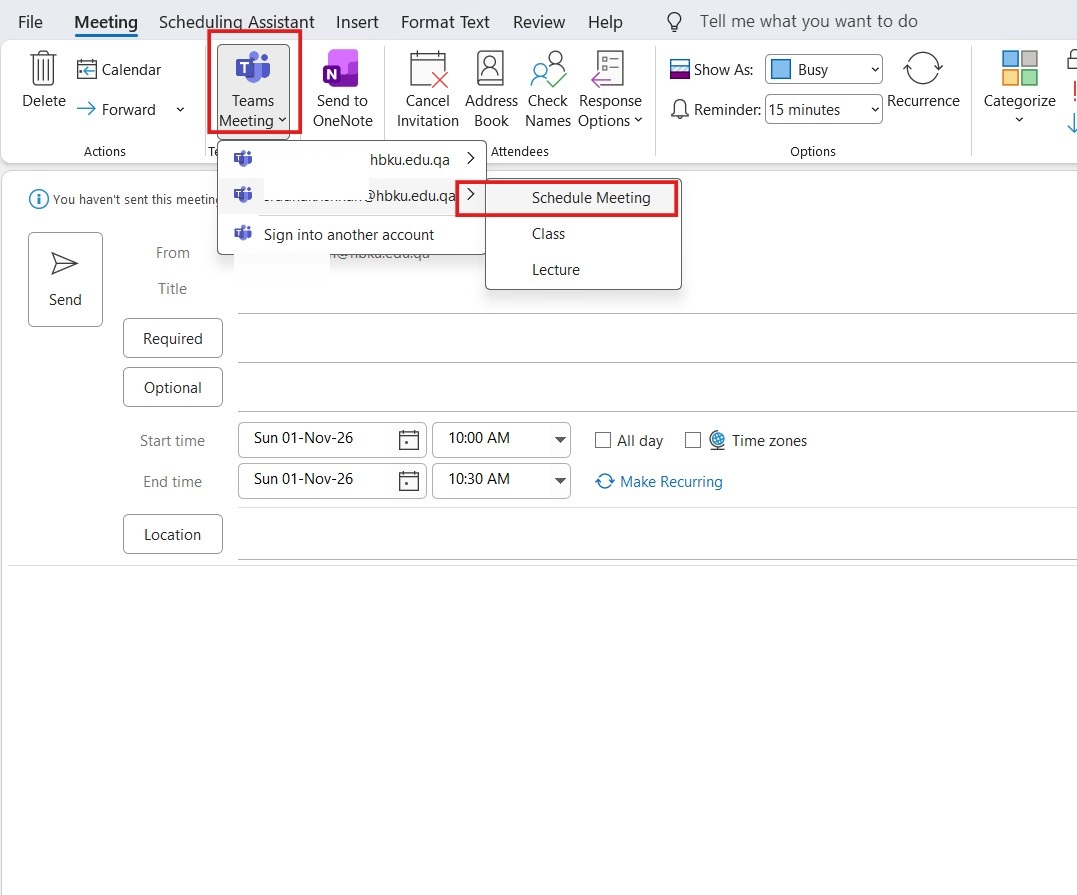
- Under Teams Meeting>Schedule Meeting
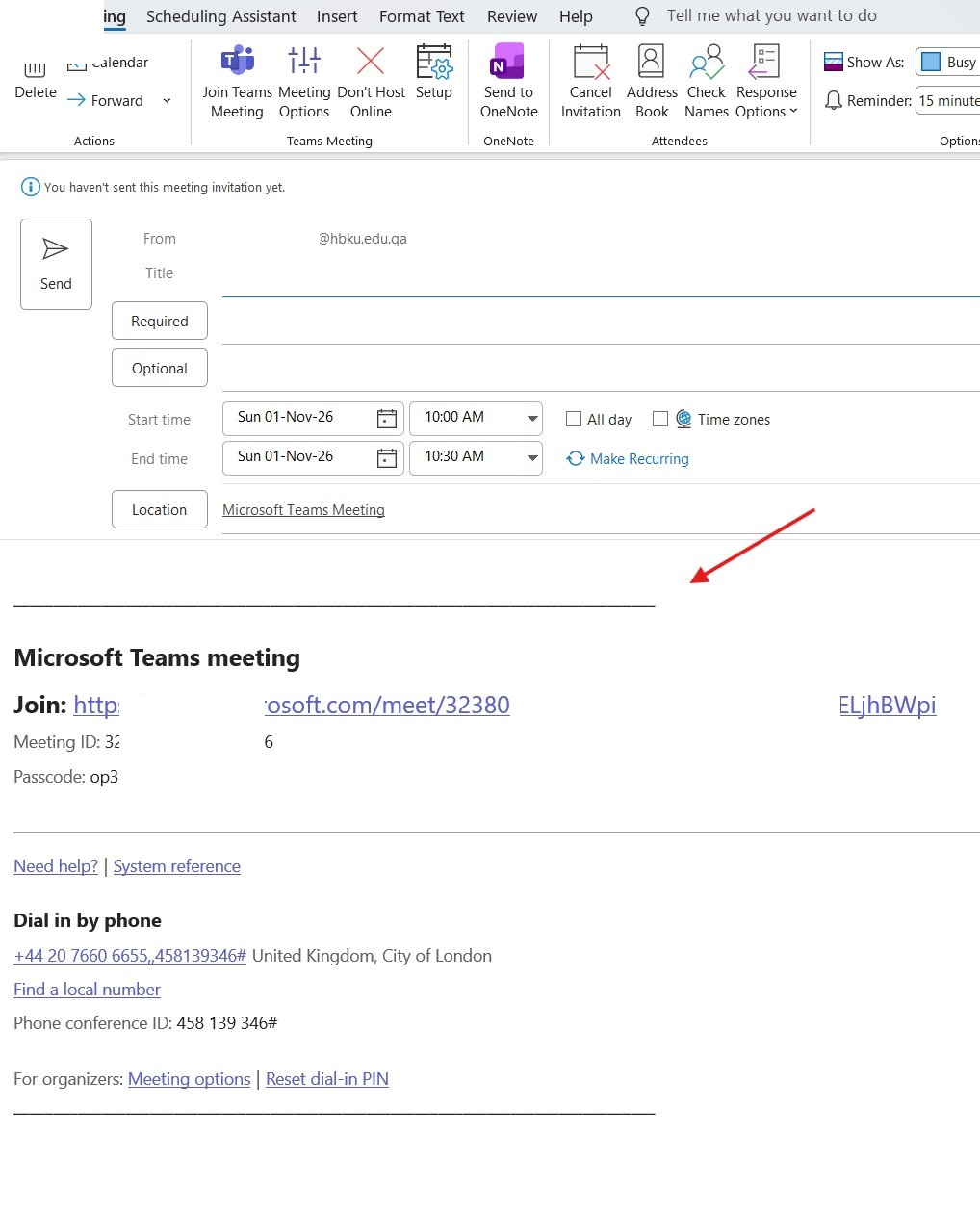
- The meeting link will be created.
Prefer to have a Teams link added to all your meetings? You can turn it back on:
- Classic Outlook (desktop):
- Go to File > Options > Calendar.
- Under Calendar options, check “Add online meeting to all meetings.”
- Click OK.
- New Outlook (desktop), Online Web Outlook:
- Click File > Settings (gear icon) > Calendar > Events and invitations.
- Turn on “Add online meeting to all meetings.”
- Click Save.
- Outlook on the web (outlook.office.com):
- Click Settings (gear icon) > Calendar > Events and invitations.
- Turn on “Add online meeting to all meetings.”
- Click Save.