Using Mediasite Lecture Capture from Canvas
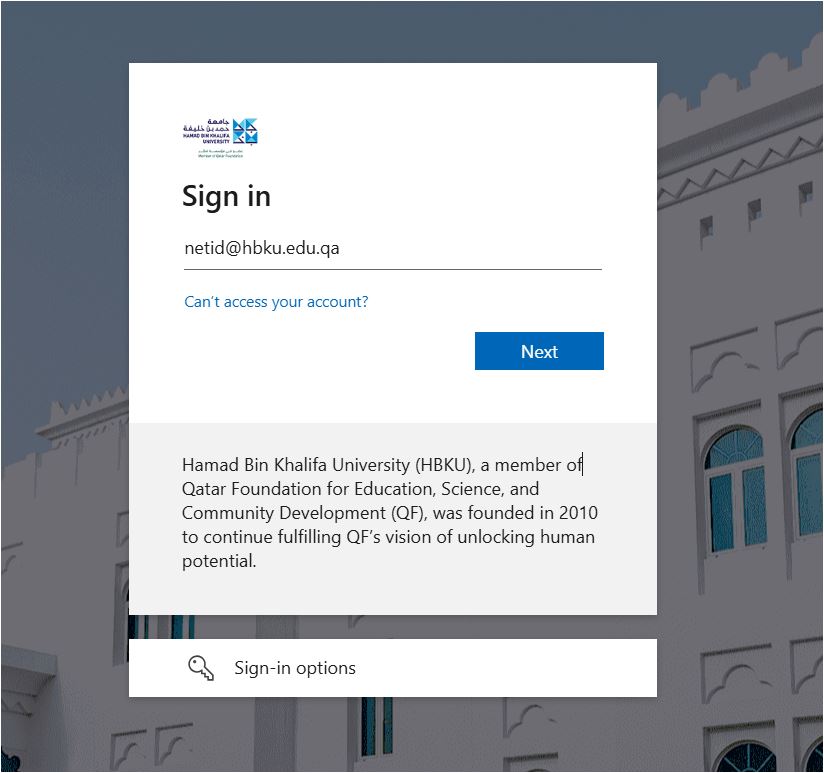
- Log in to HBKU Canvas LMS
- Enter your HBKU email credentials
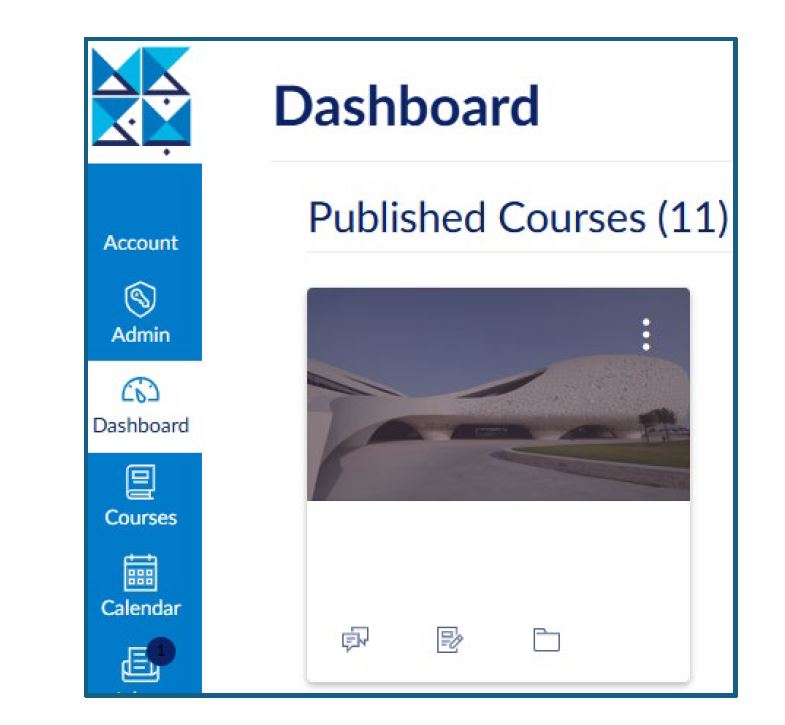
- Select your course
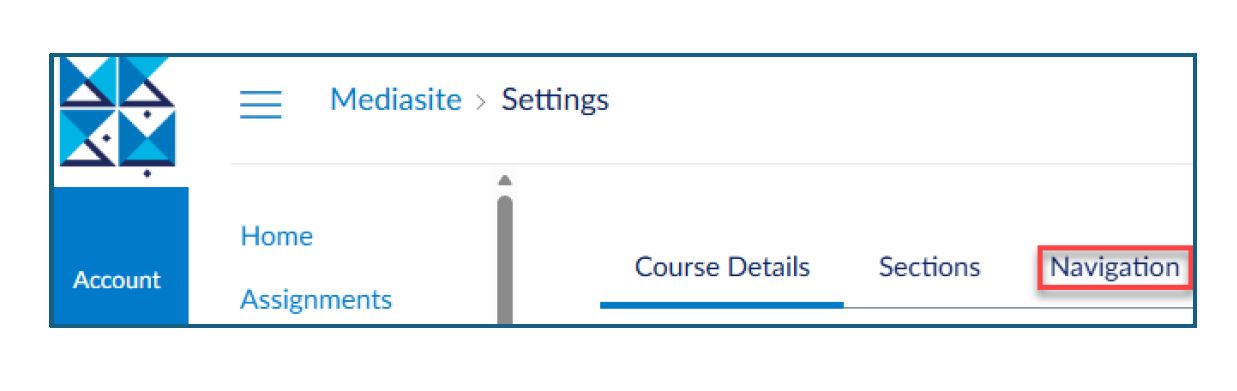
4. Click on Settings if you are unable to find My Mediasite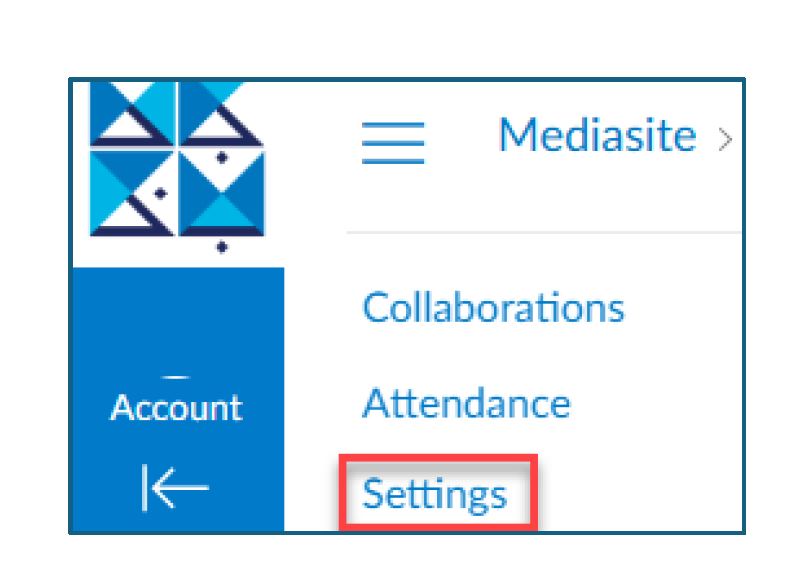
5. Click on the Navigation Tab
6. Scroll down and click on the 3 dots and select Enable
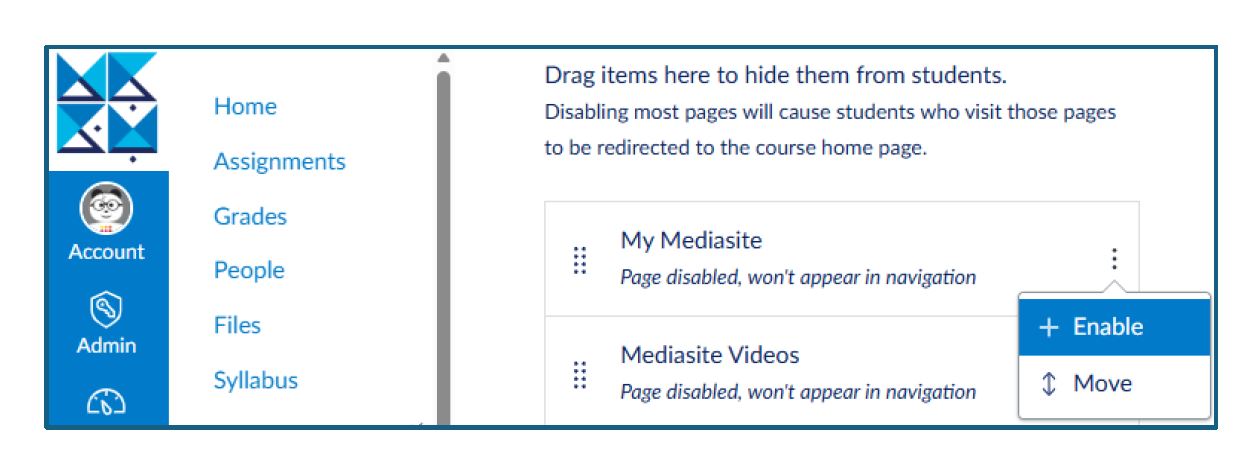
7. Enable My Mediasite and Mediasite Videos.
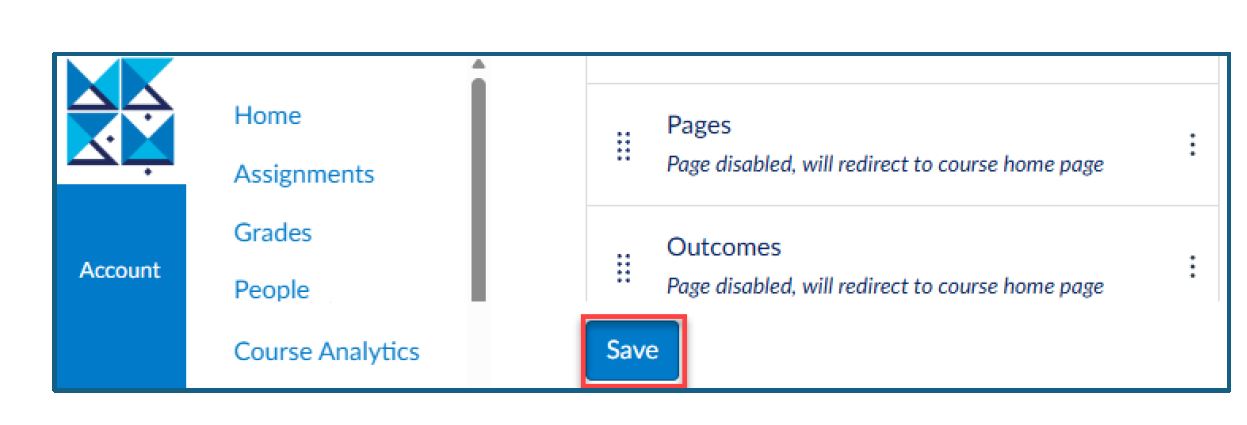
8. Click Save.
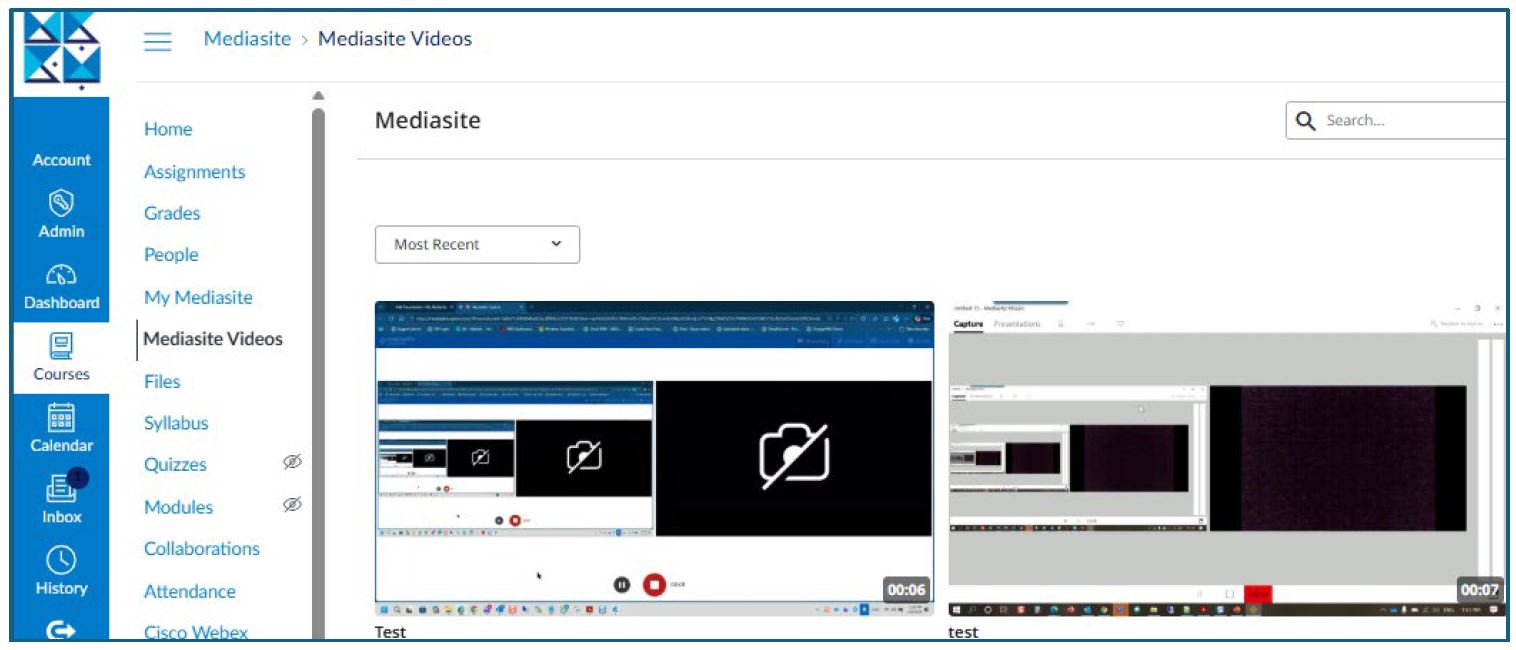
9. Click on Mediasite Videos in your course
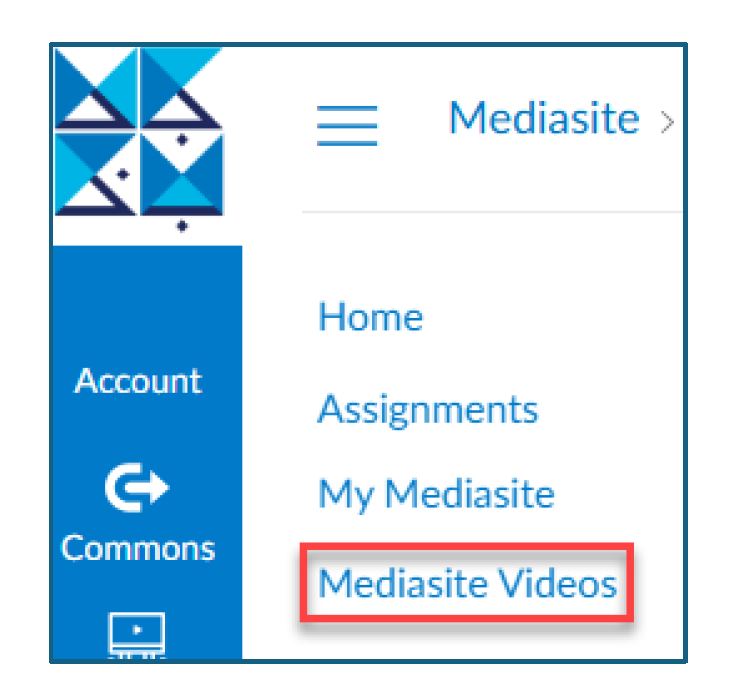
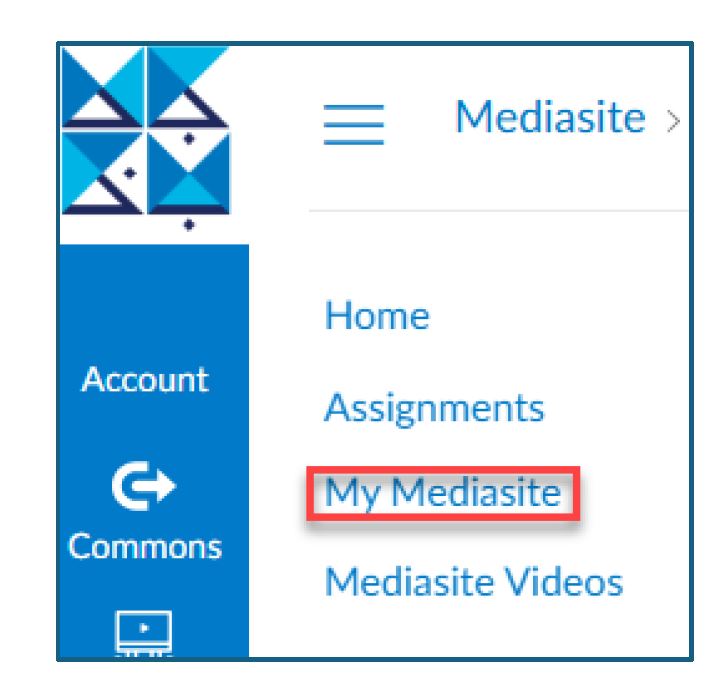
10. Click on My Mediasite in your course
11. Click on Authorize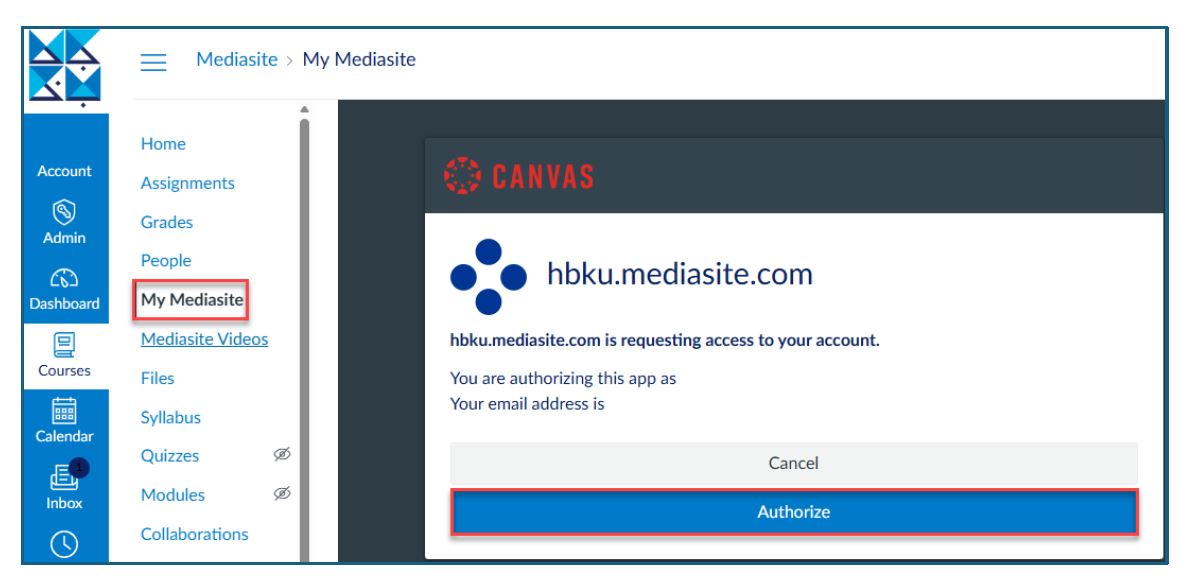
12. Click on Add Presentation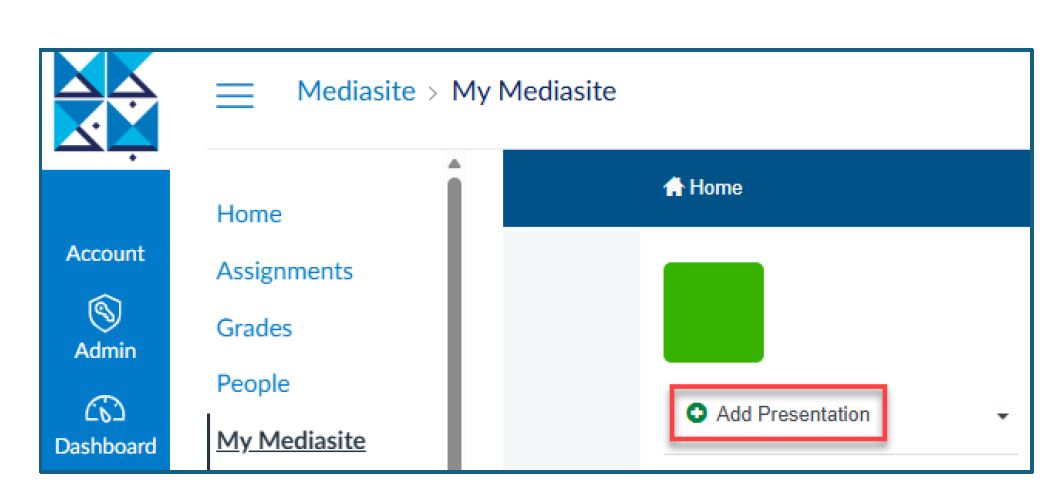
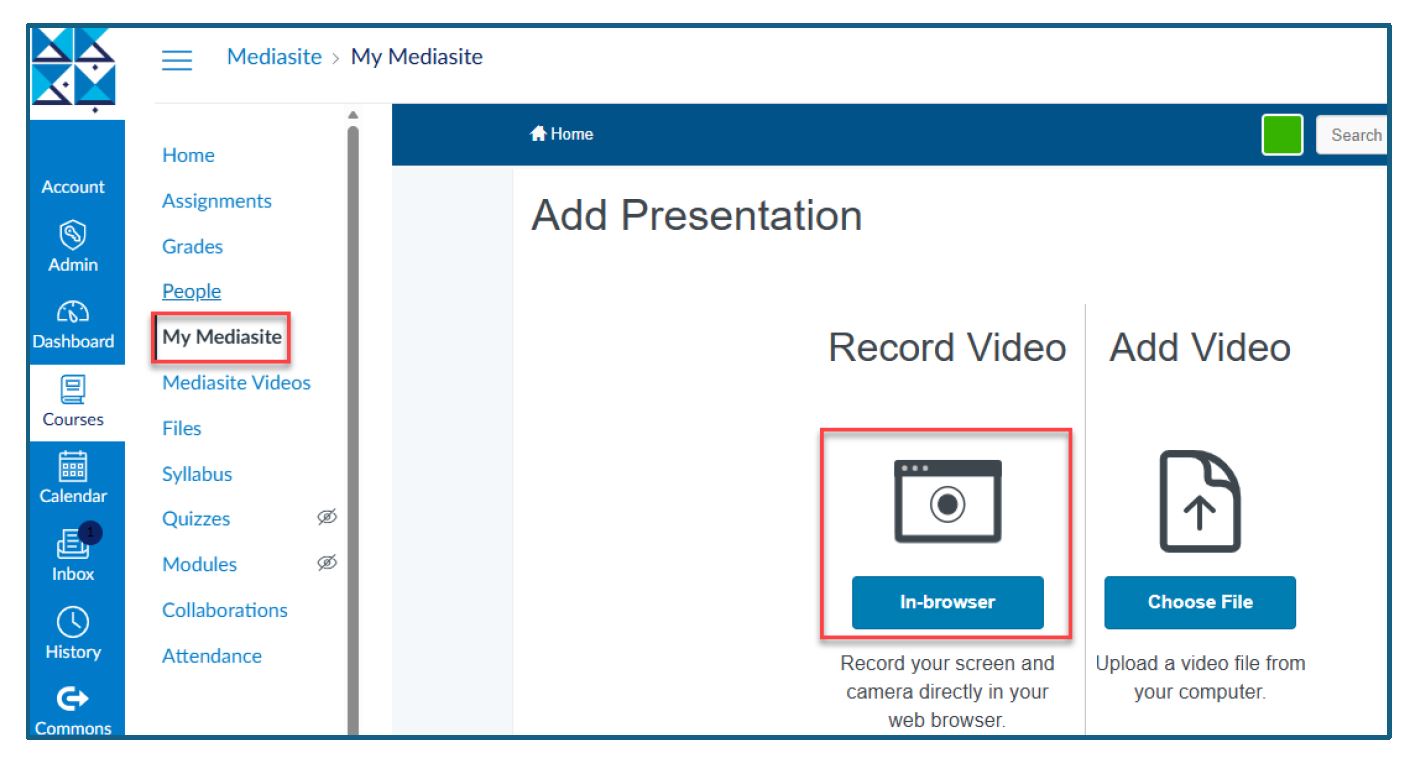
13. Click on In-browser
14. Enter a Title
15. Click on Create and Launch
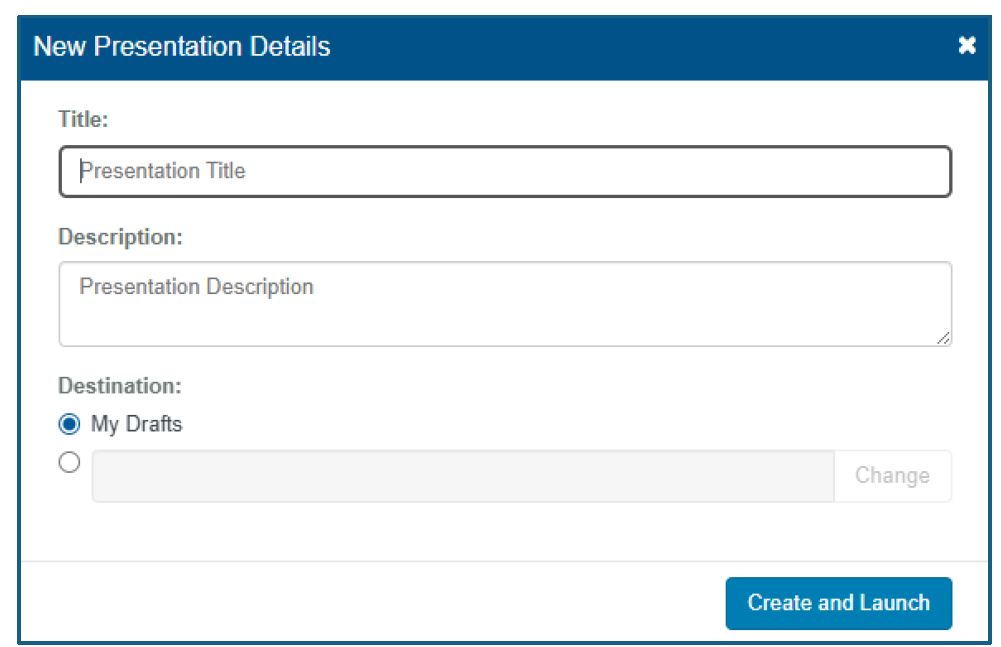
16. The browser for capture will launch in a different browser
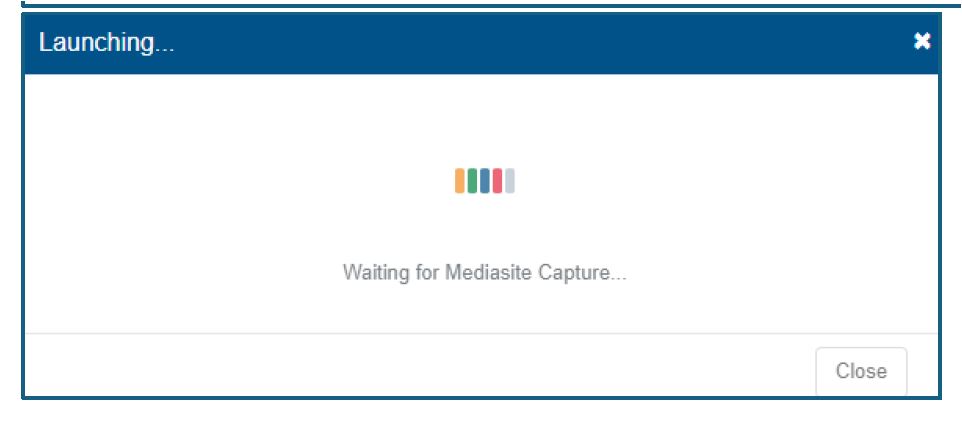
17. Select from the 3 options you want your recordings.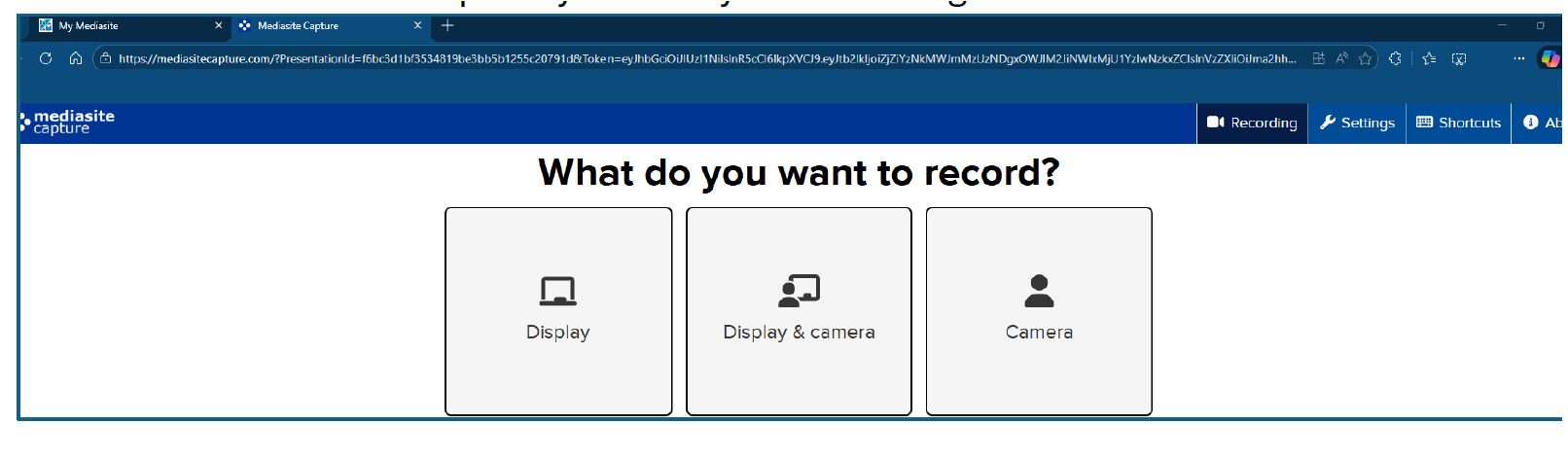
18. Select what content you would like to share
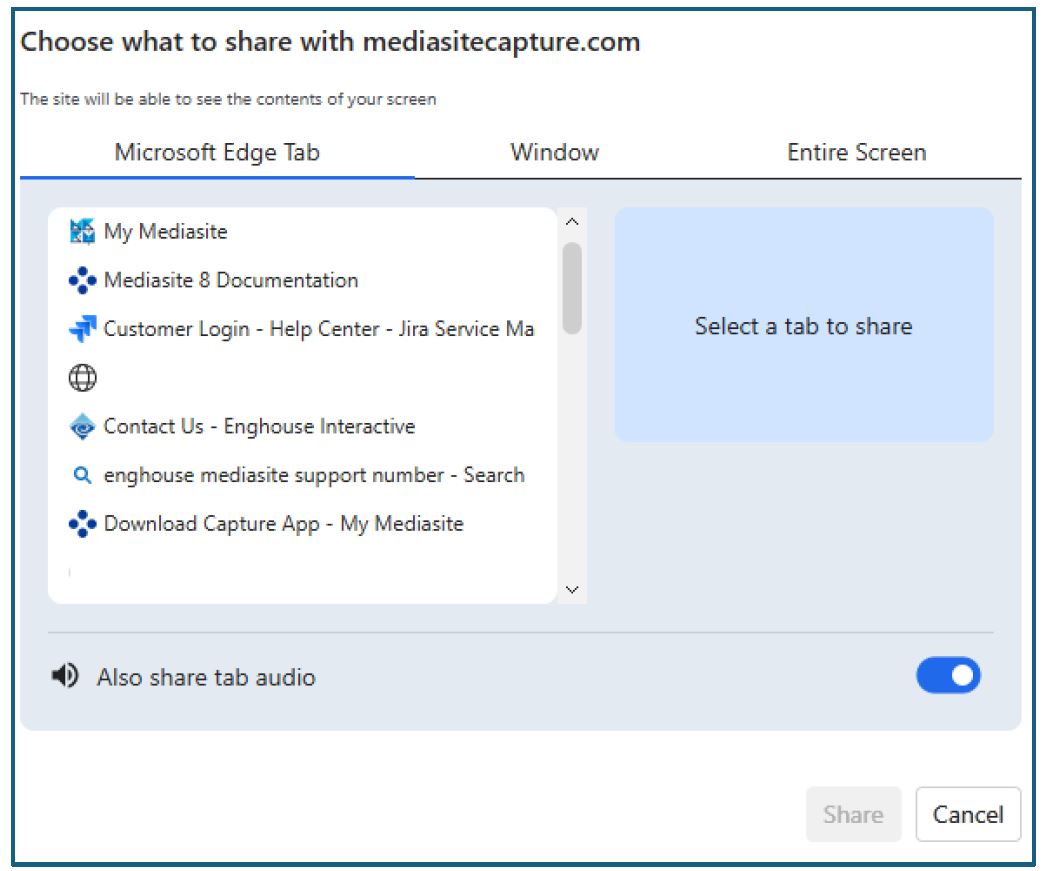
19. Preview your settings for Display and Camera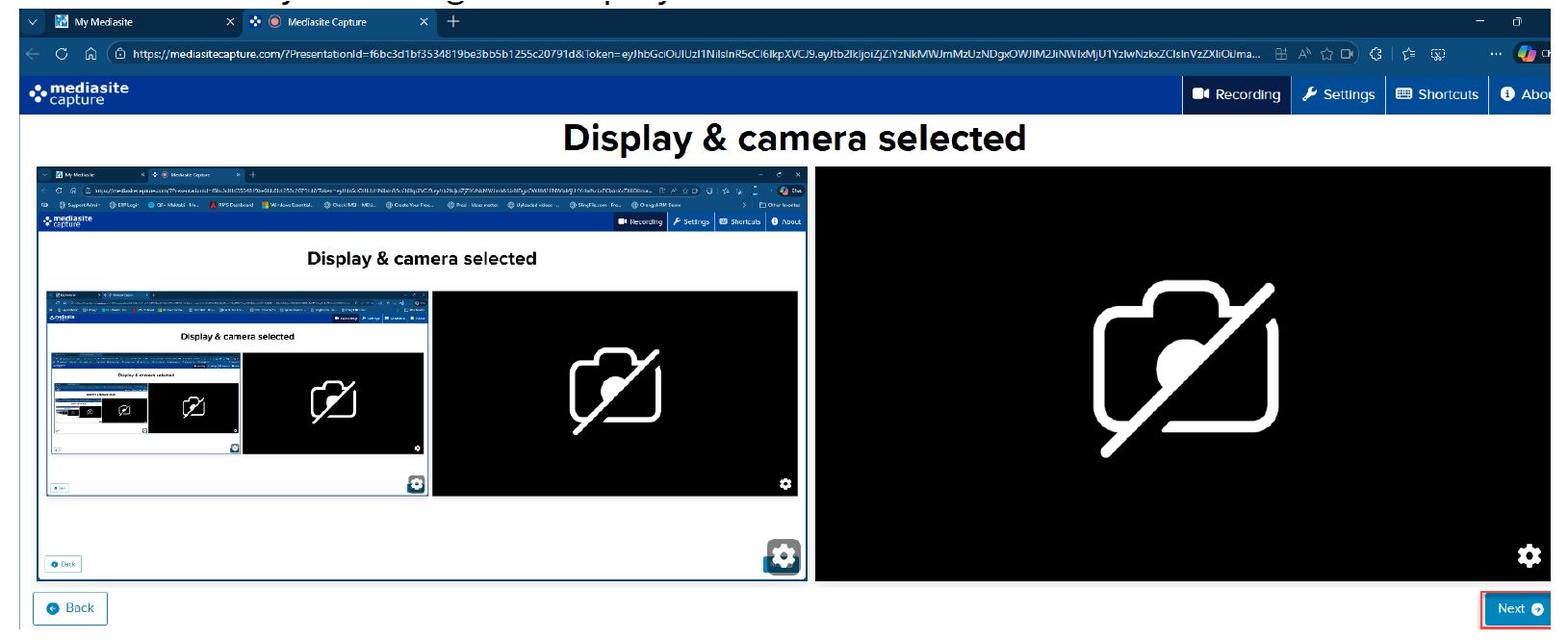
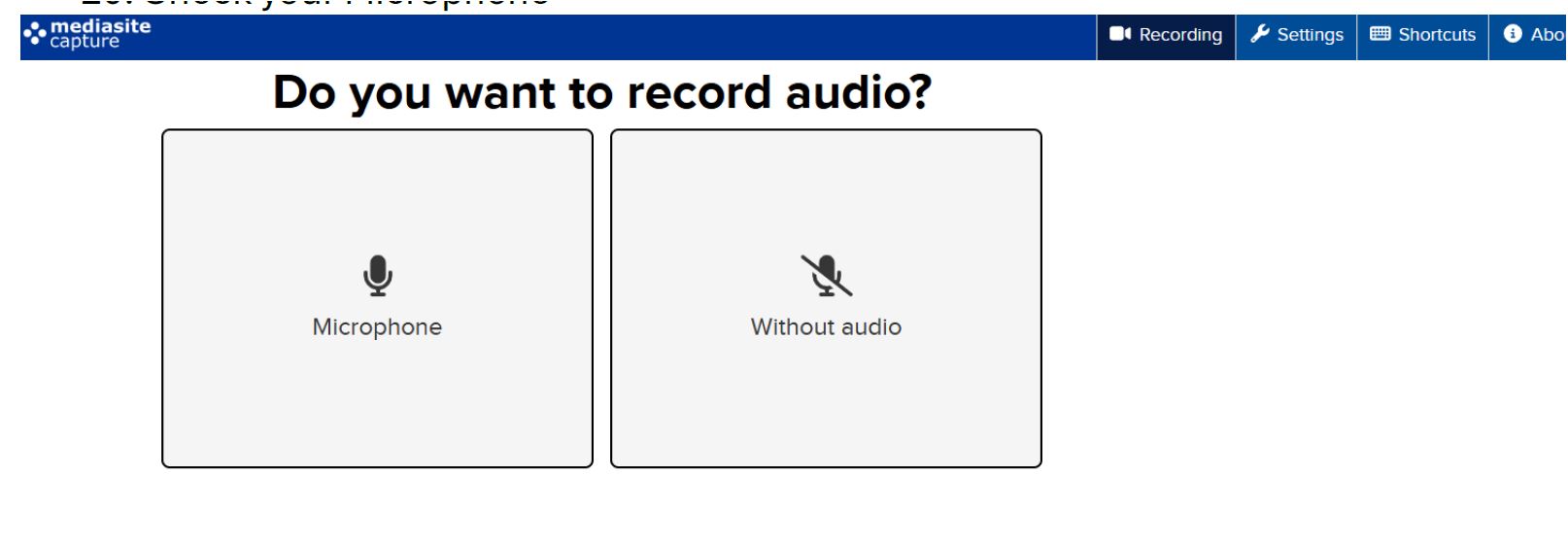
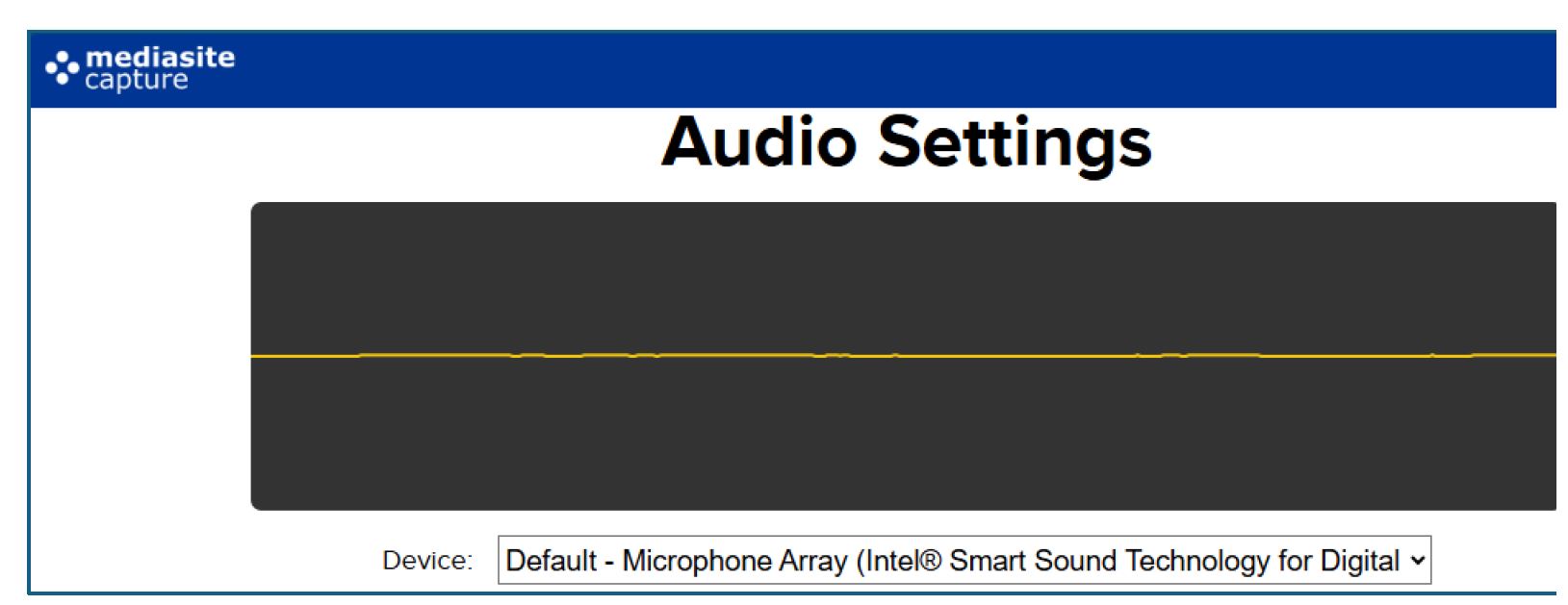
20. Check your Microphone
21. Click on the Record button 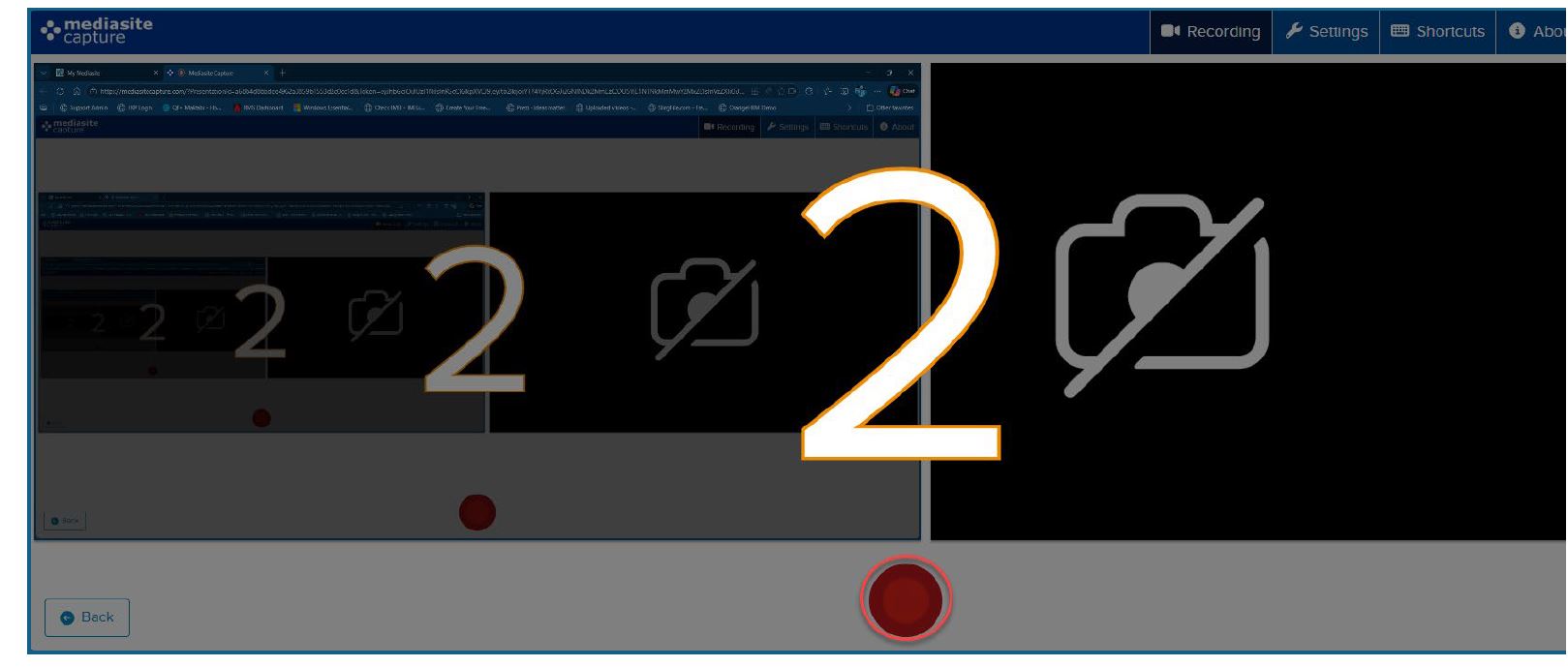 22. Once the recording is complete, click on Upload to Mediasite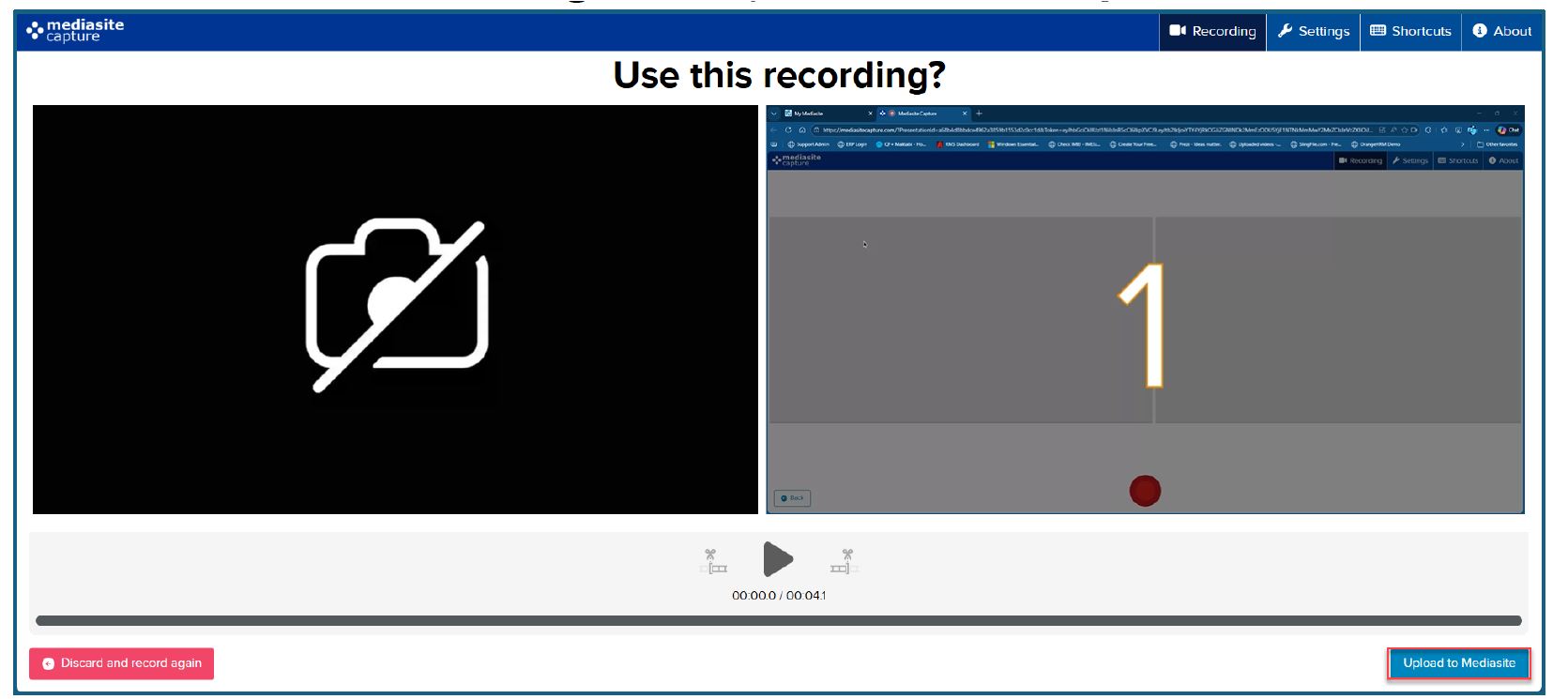
23. Click on My Mediasite in your course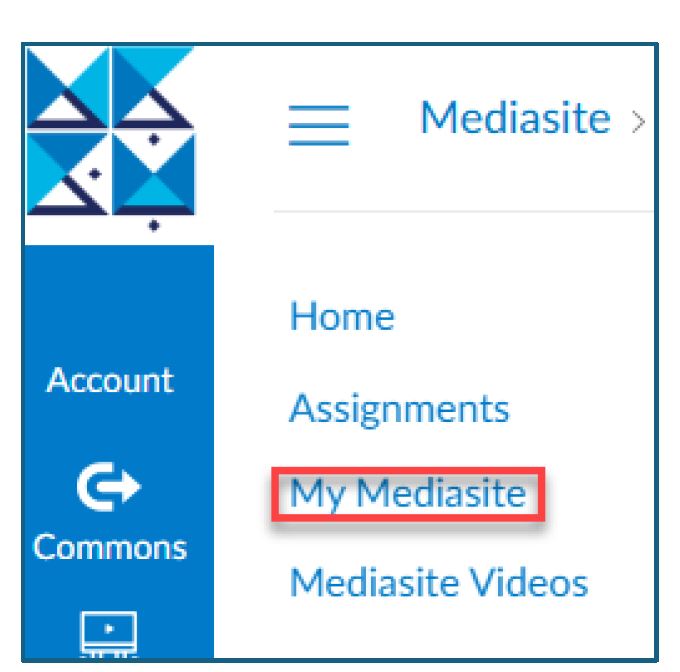
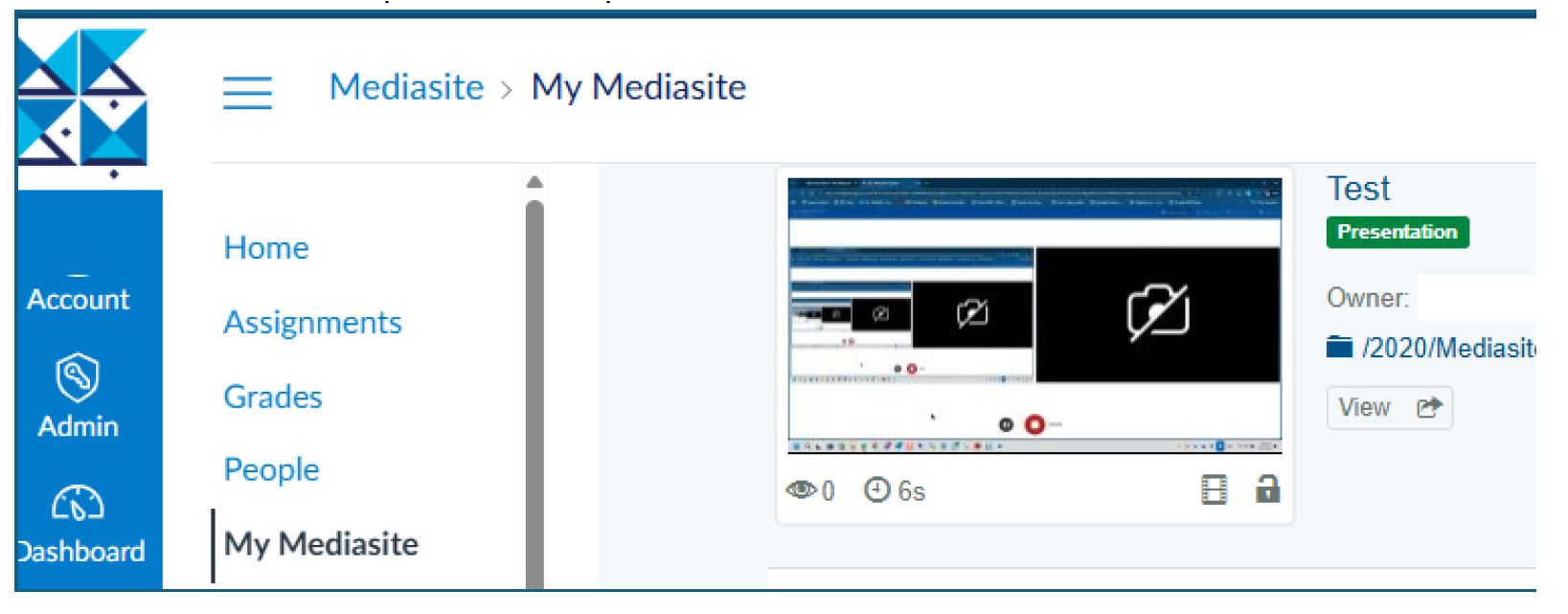
24. Click on the captured video presentation
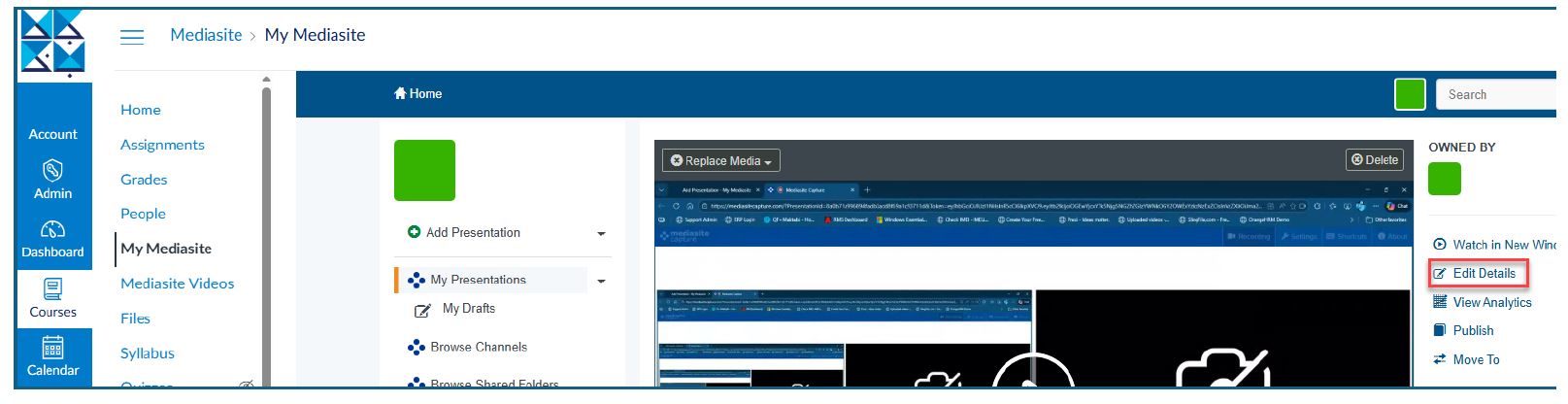
25. Click on Edit Details on the right
26. Select Viewable on the right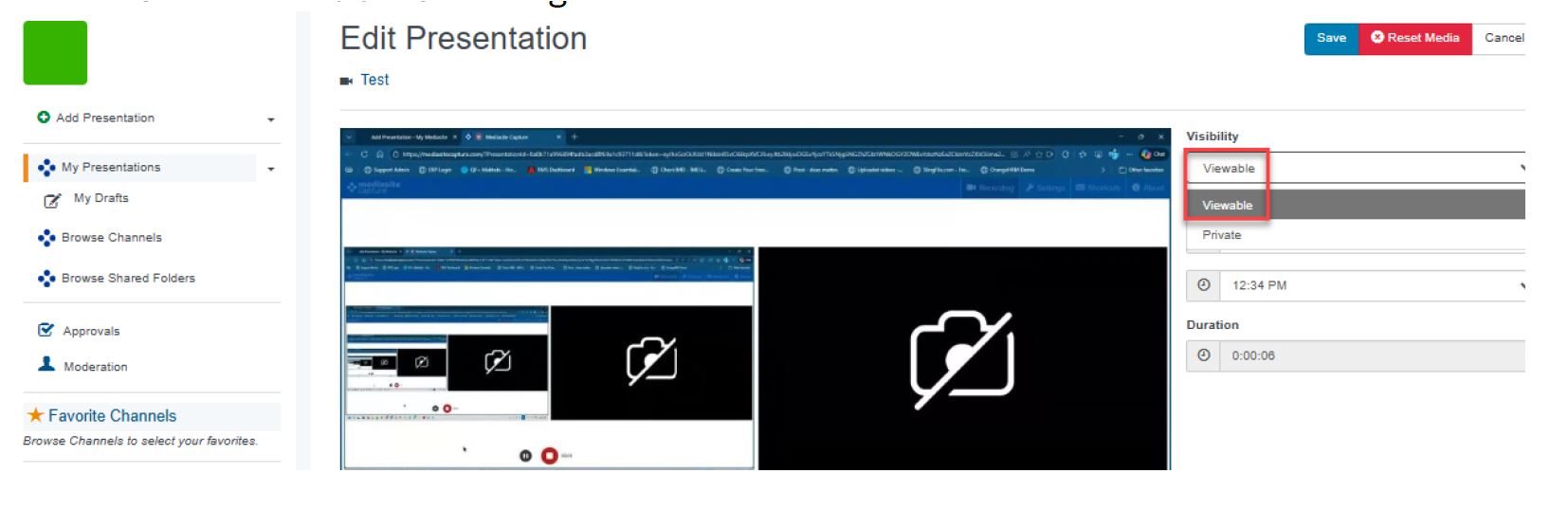 27. Click on Add Module and select the module
28. Once selected, click save.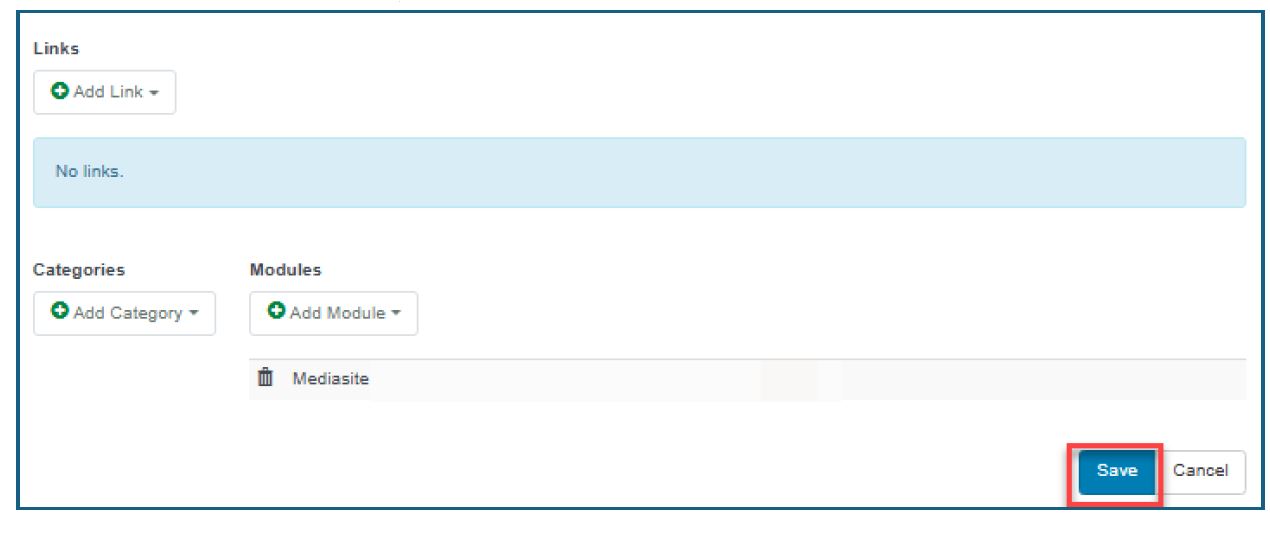
29. Your videos will be available to students under the Mediasite videos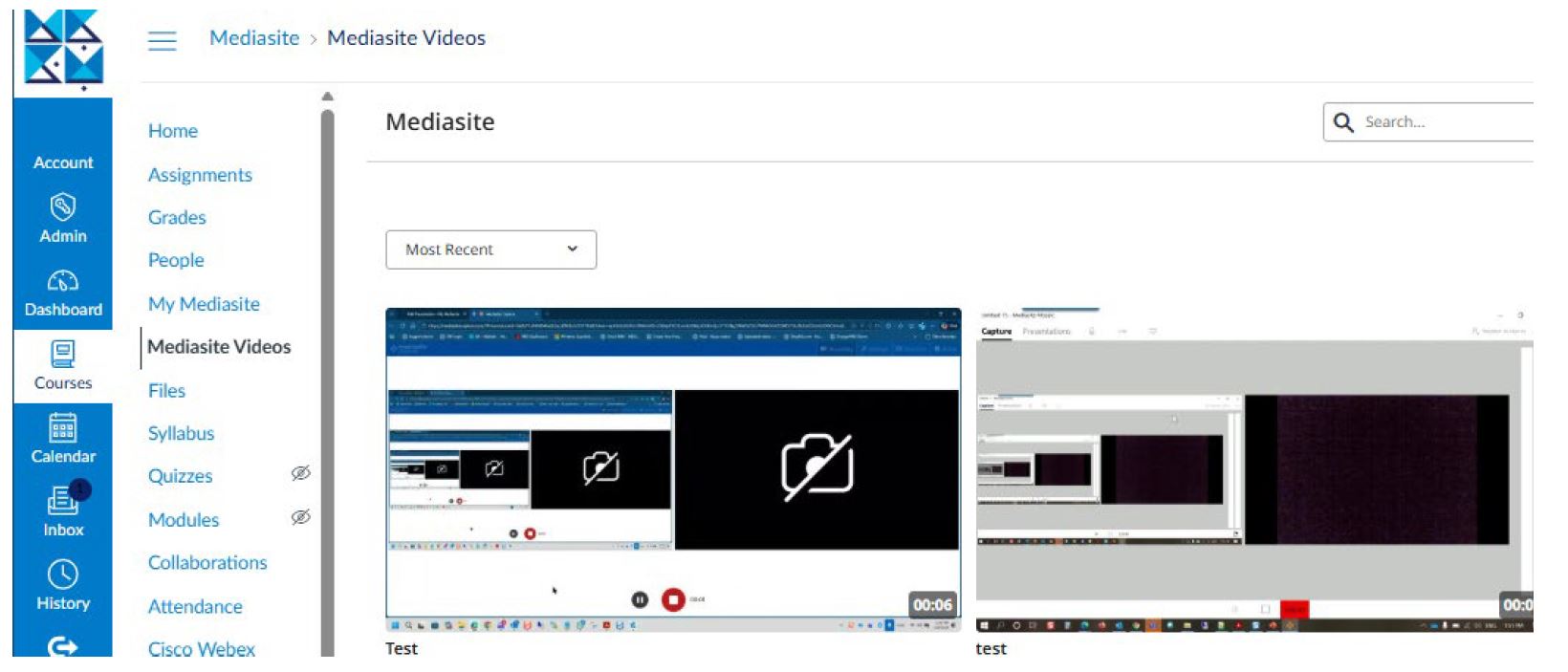
How to upload a recorded lecture using Mediasite Lecture Capture:
1. Click on Authorize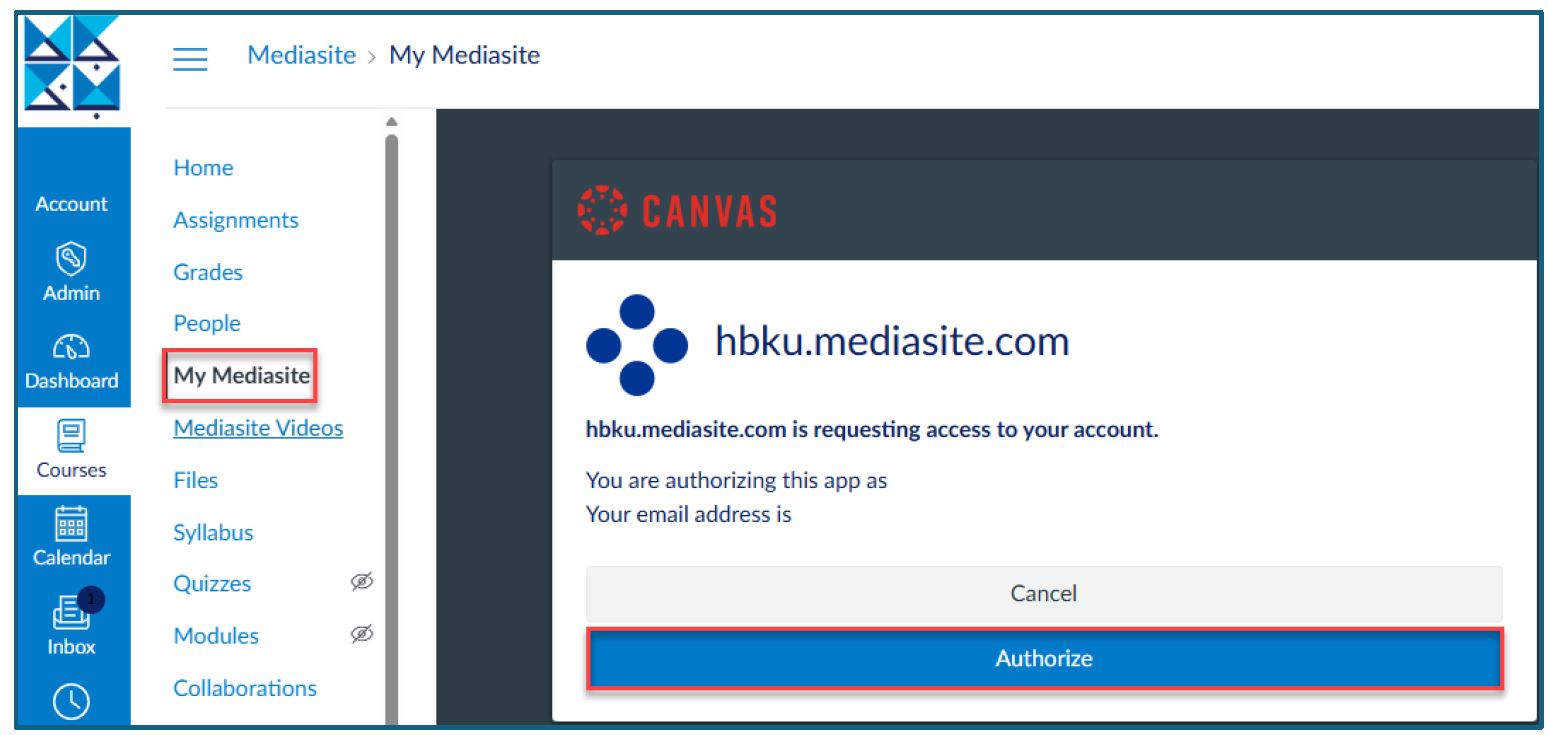
2. Click on Add Presentation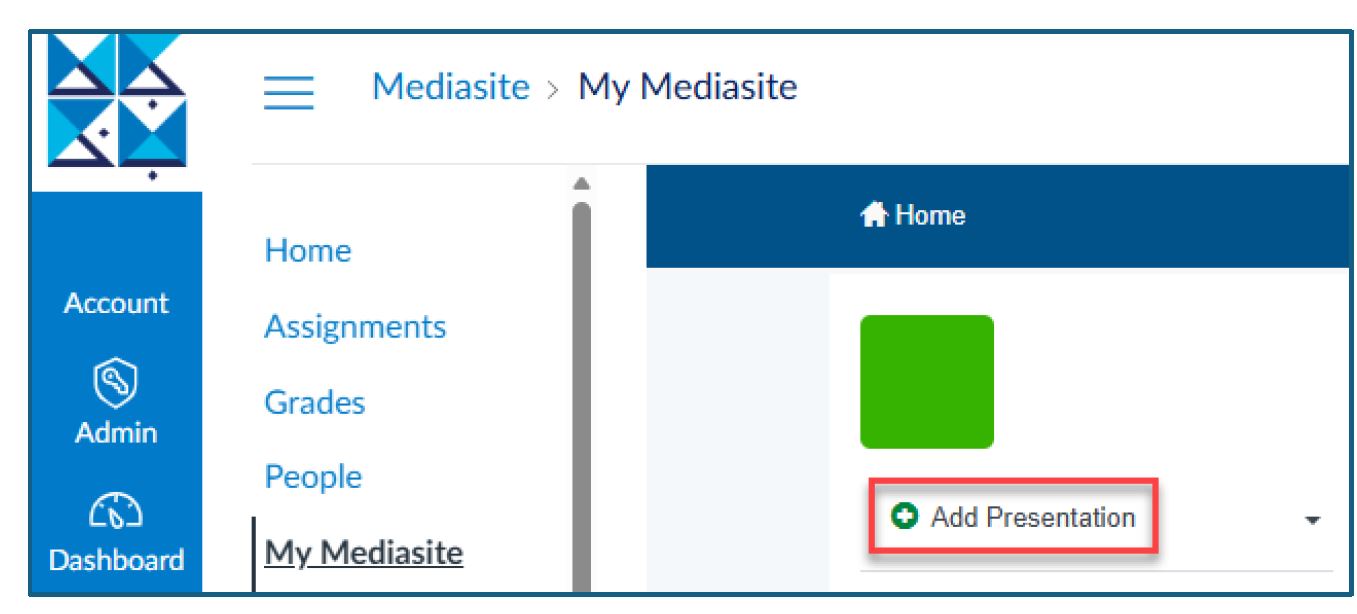
3. Click on Choose File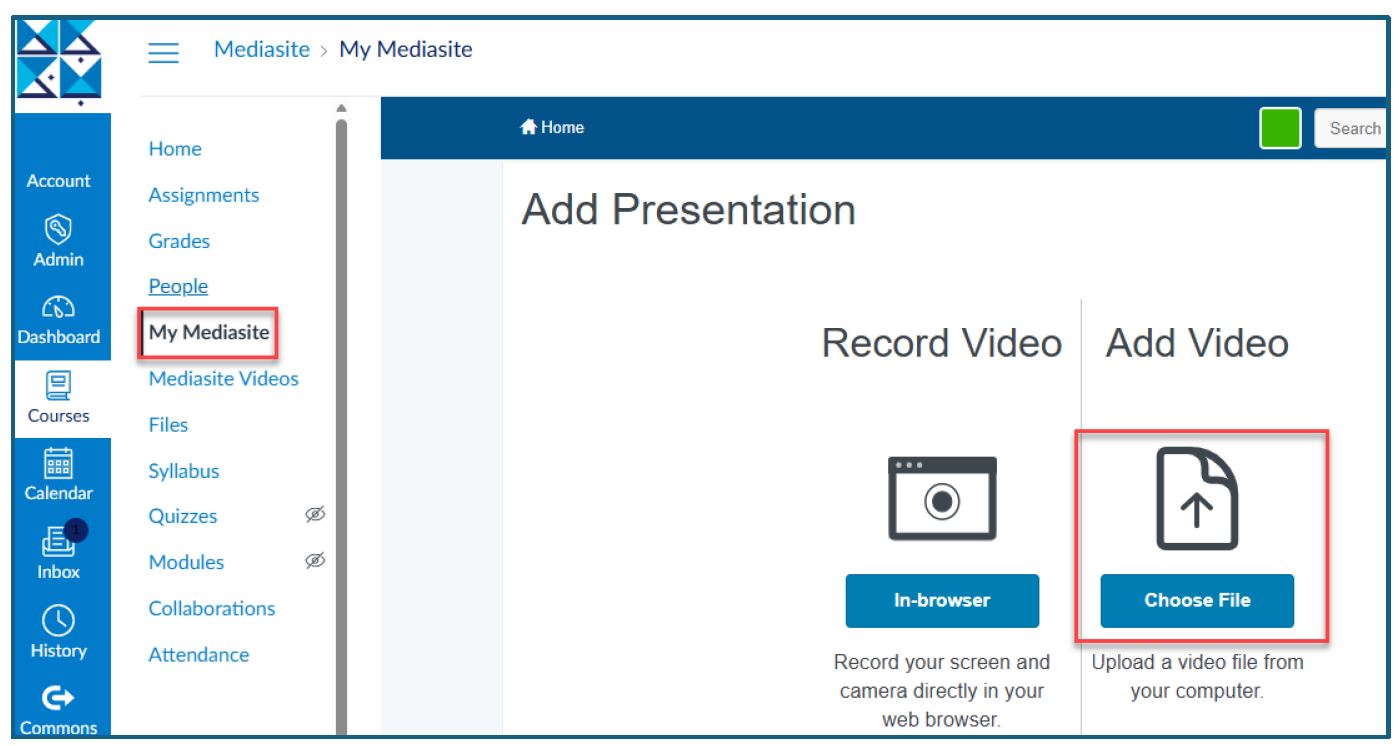
4. Add Presentation Title
5. Create Presentation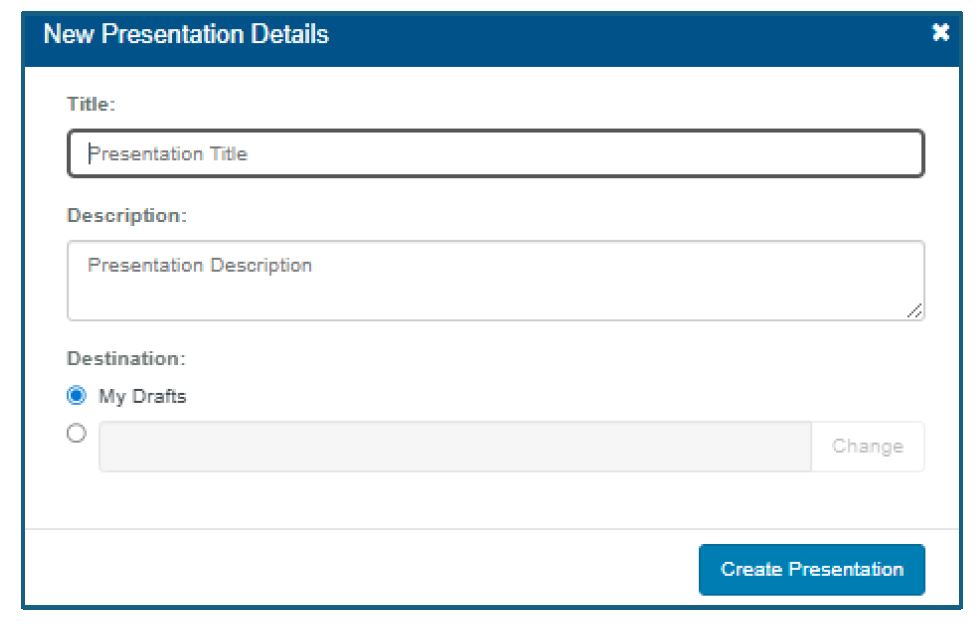
6. Select the file from the source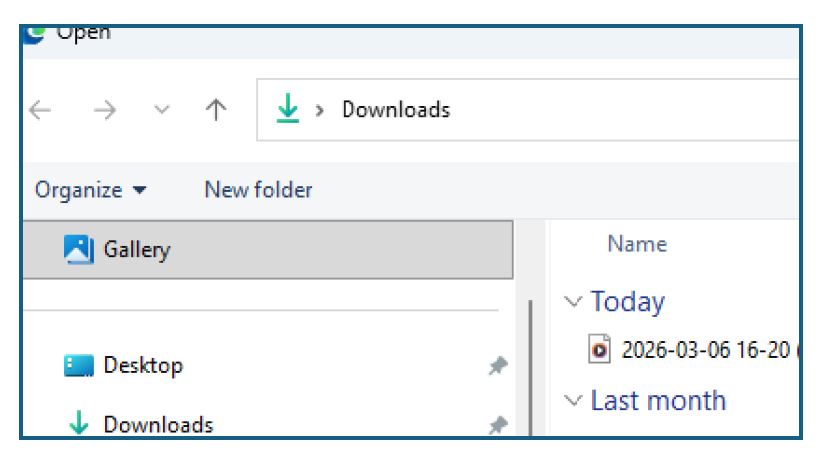
7. Wait for the video to upload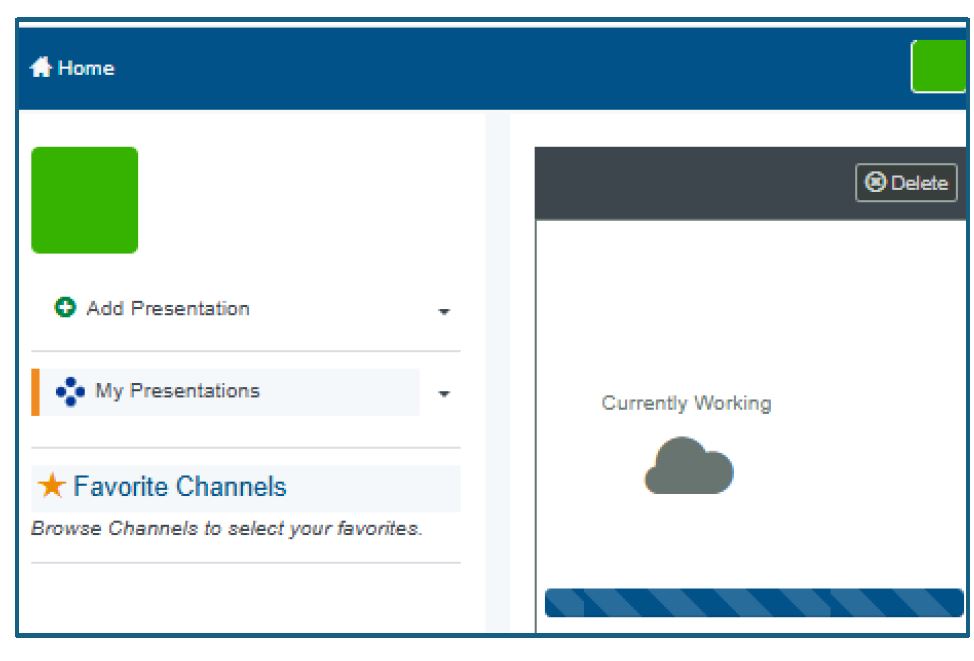
8. Click on Edit Details on the right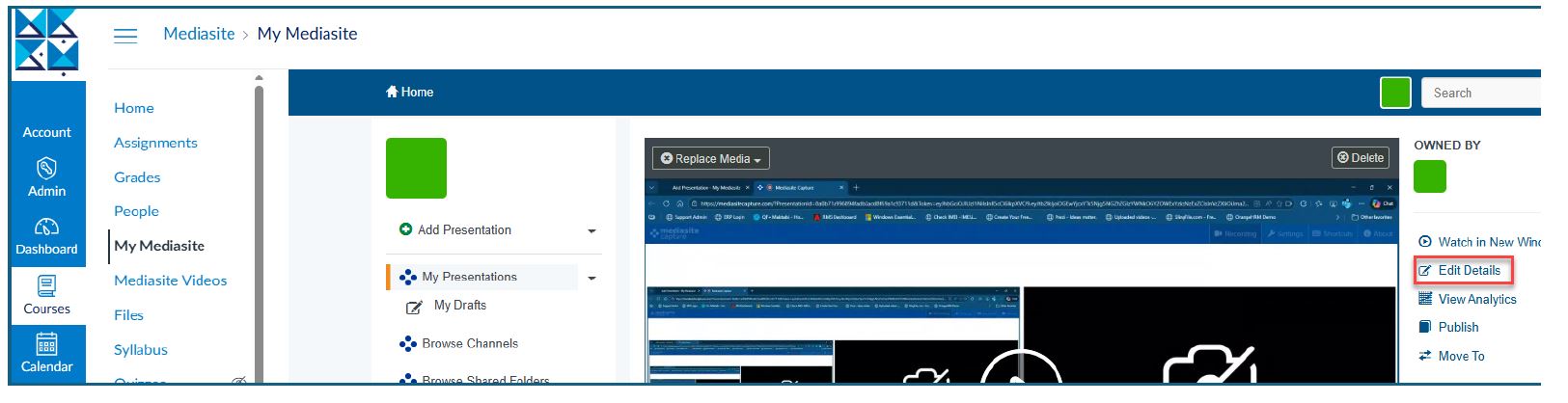
9. Select Viewable on the right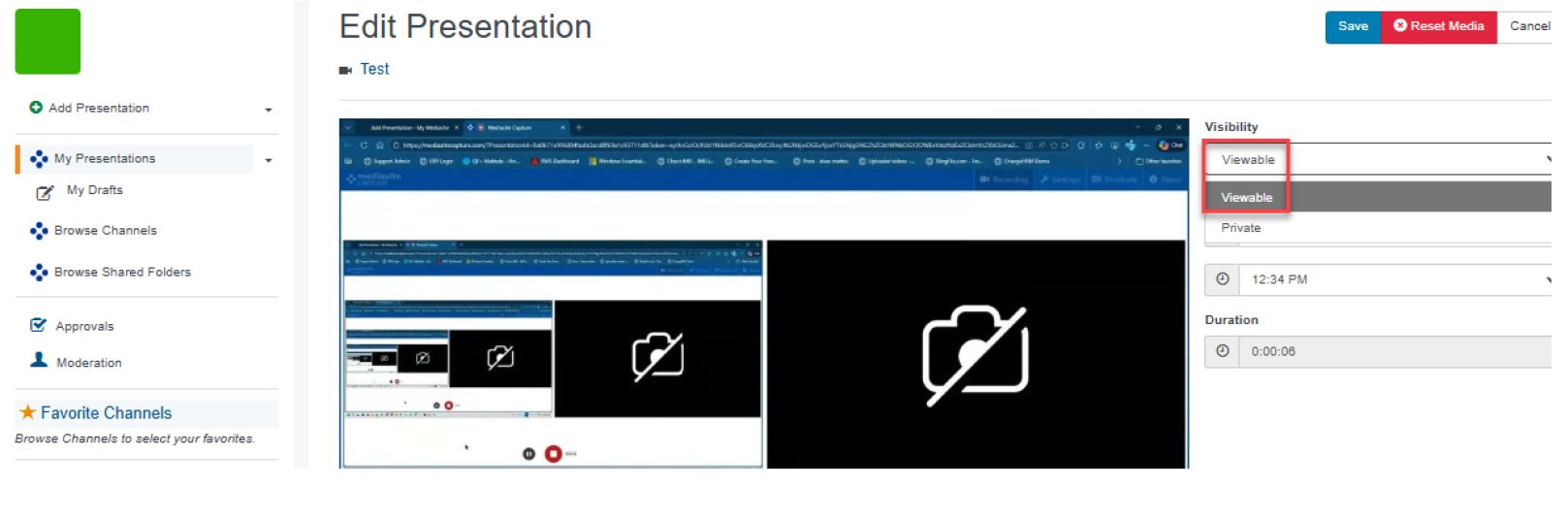
10. Click on Add Module and select the module
11. Once selected, click Save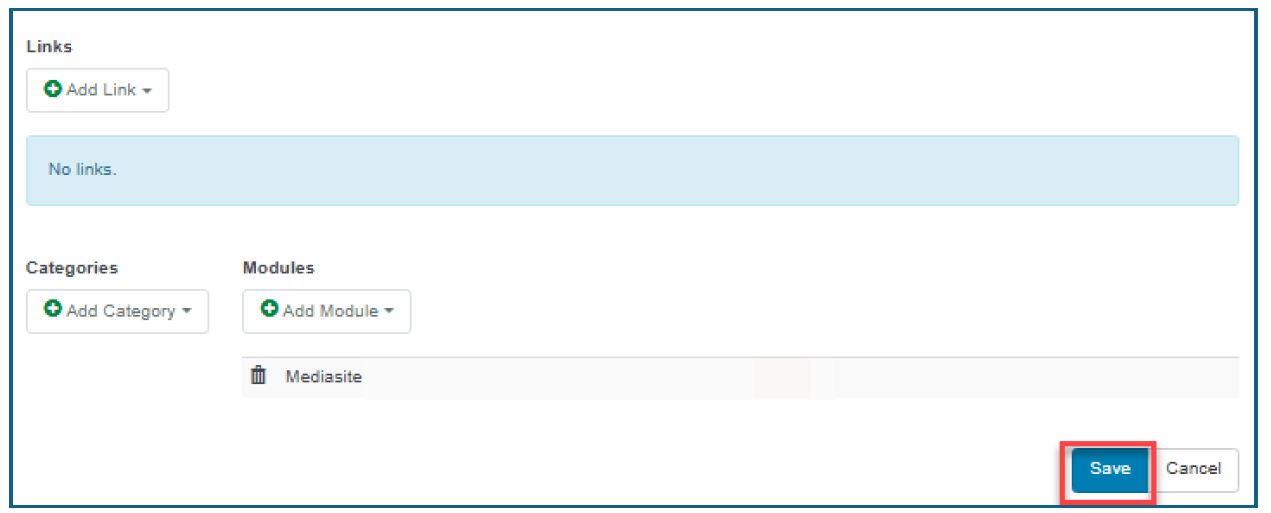
12. Your videos will be available to students under the Mediasite videos